How to record payments and see debts
Incoming and outgoing payments, cash receipts and expenses, linking to documents, counterparty debts and cash balances.
Money in Skladnyk is recorded with four documents. Two are for bank transfers, two for cash in the cash desk.
| Money came in | Money went out |
|---|---|
| Incoming payment - to the bank account | Outgoing payment - from the bank account |
| Cash receipt - in cash to the cash desk | Cash expense - in cash from the cash desk |
All four live in "Money" → "Payments", one list, so you see the money flow together.
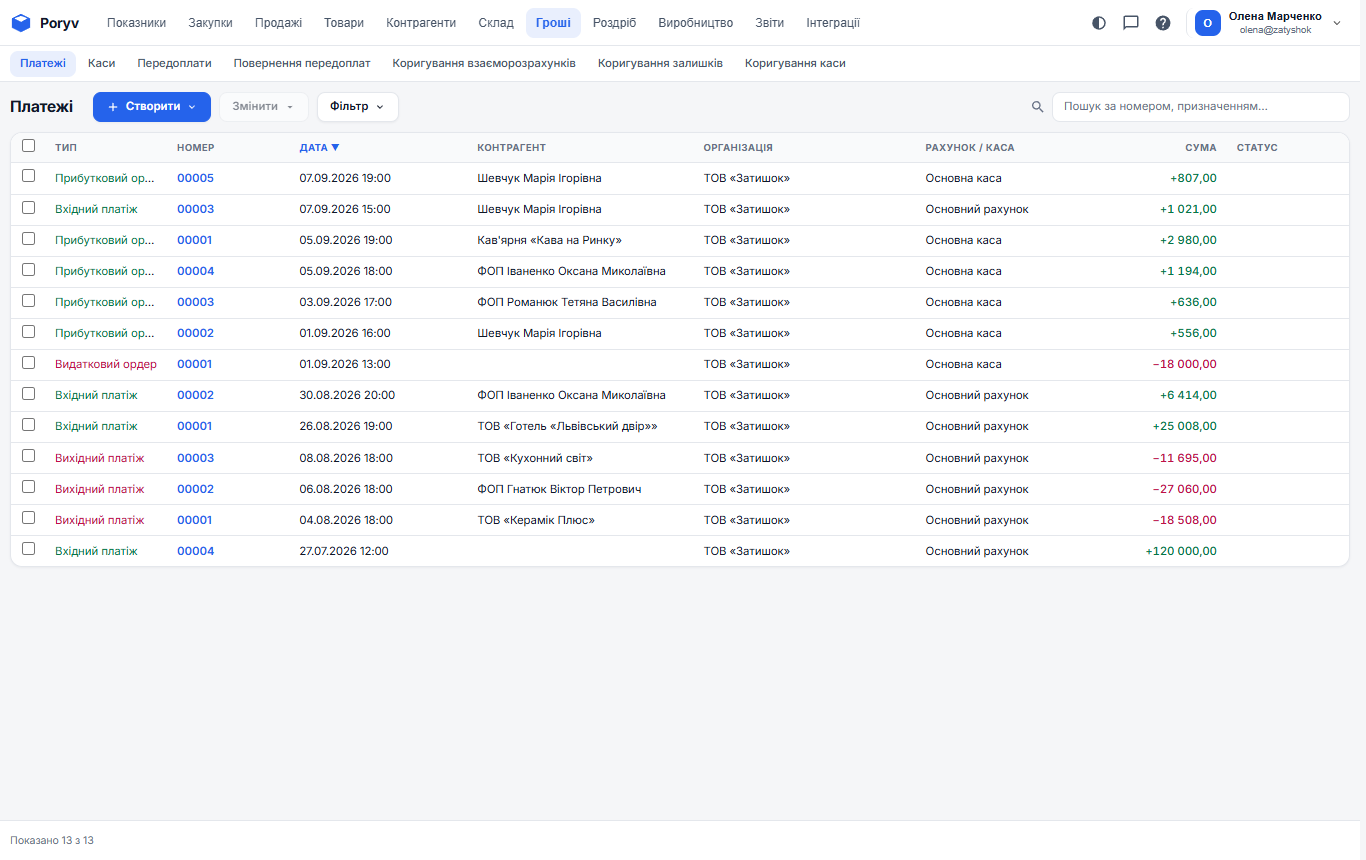
Record a customer payment
The easiest way is from the document being paid:
- Open the shipment, order or invoice.
- Click "Create document" → "Incoming payment" (transfer) or **"Cash receipt"** (cash).
- Check the amount: it is filled in for the whole debt under the document. If only part was paid, enter the actual amount.
- In "Payment purpose" you can note what it is for: "Payment for invoice no. 00001".
- Switch on "Posted" and click "Save".
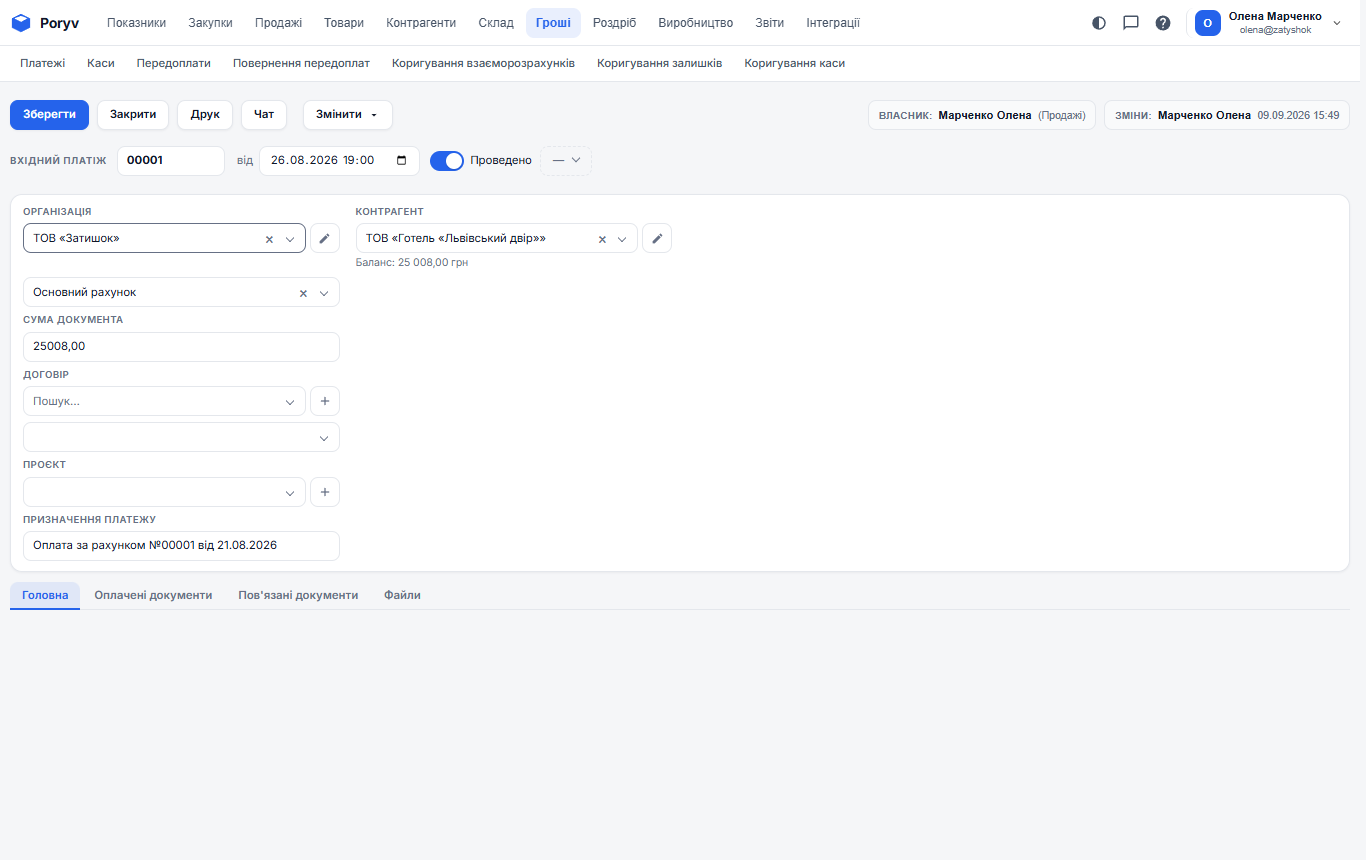
The payment is linked to the document automatically, and that document is marked "Paid" or "Partially paid".
If the payment was created from scratch ("Money" → "Payments" → "Create"), link it to documents on the "Paid documents" tab: choose which documents it settles and how to split the amount.
Cash
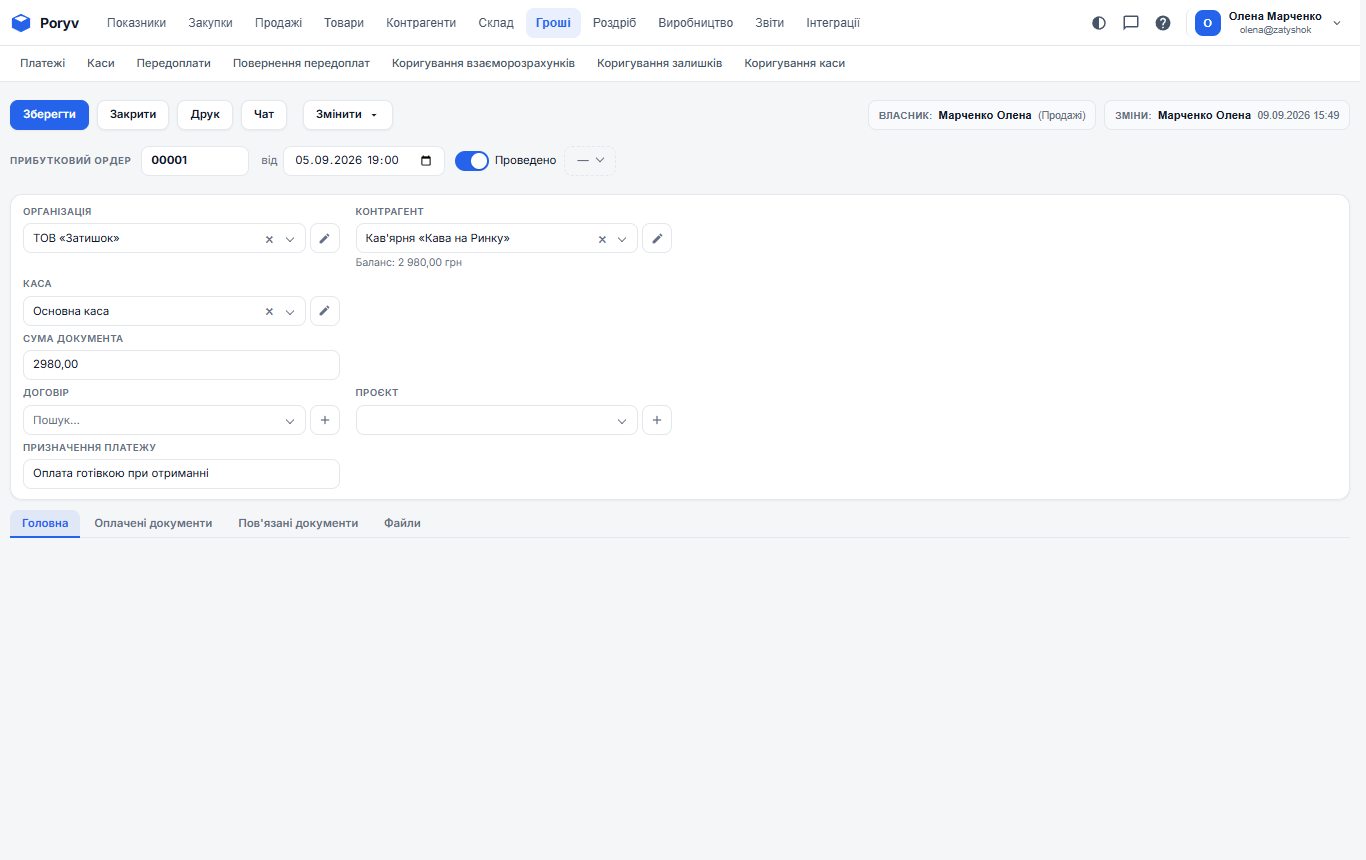
Cash receipts and cash expenses work the same way, only a cash desk is chosen instead of the organization's bank account. "Main cash desk" is created together with the organization; if there are several (shop, office), add them in "Money" → "Cash desks".
Expenses without a document
Rent, salaries, taxes, advertising are expenses without a supply. Create an Outgoing payment or Cash expense without a link and choose an "Expense item": "Rent", "Salary", "Marketing and advertising". The "Dashboard" then shows expenses by item.
Who owes how much
A counterparty's debt is calculated automatically from posted documents:
- shipments and supplies create debt;
- payments and cash orders settle it;
- returns reduce it.
Where to look:
- In a document under the "Counterparty" field, the "Balance" line. A red negative number means you owe the counterparty (say, a supplier for an unpaid supply); positive means they owe you.
- In the counterparty card on the "Indicators" tab, the overall balance; on the "Documents" tab, every document with its payment mark.
- At the bottom of a document list, the totals line: "Amount", "Paid", "Due" for all shown documents. Filter by counterparty to see their debt by document.
How much money is in the cash desk and on the account
The "Dashboard" page (the first menu item), in the "Balances" block, shows the balance of every cash desk and account and a balance chart. It also shows receipts and expenses for the period and overdue customer invoices.
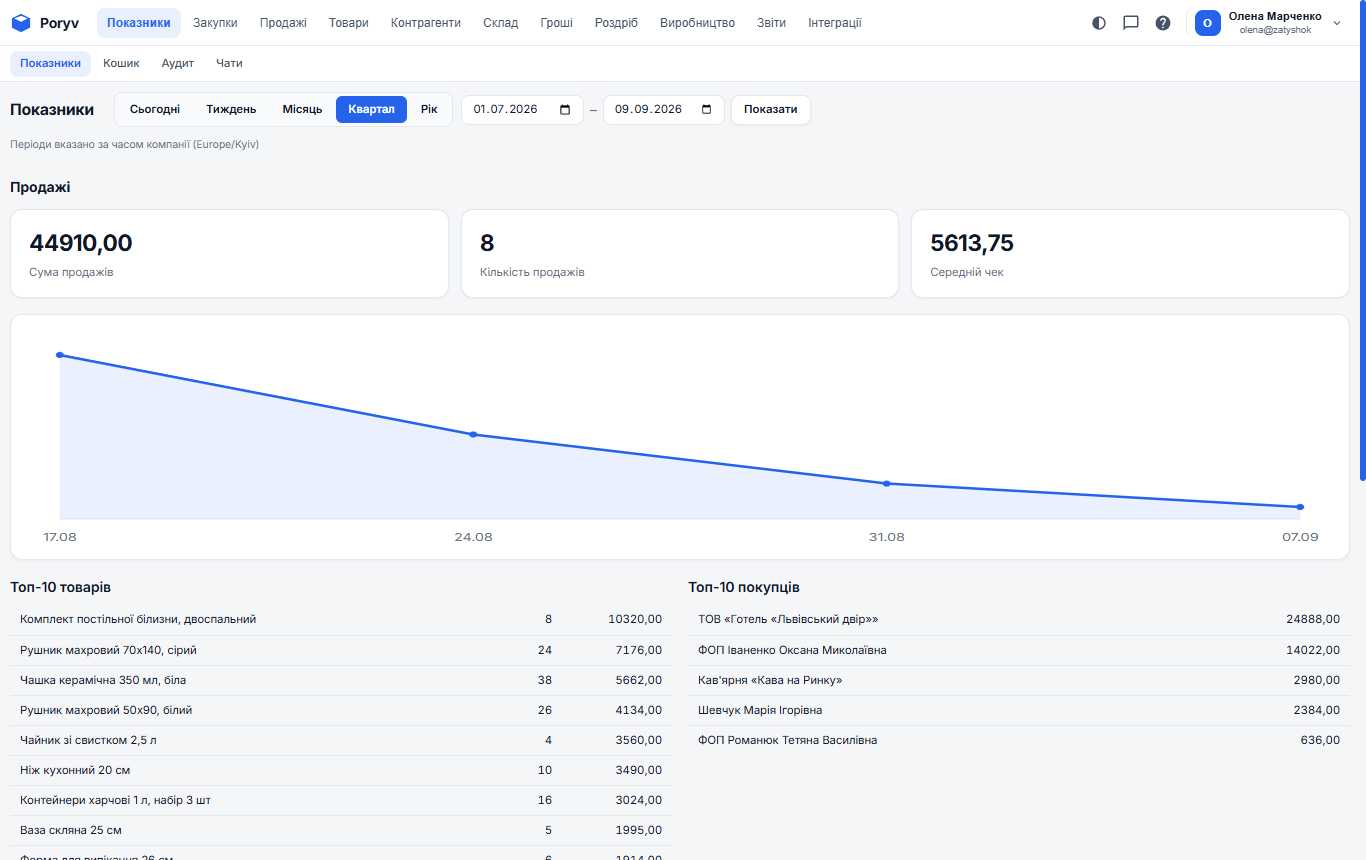
The cash balance in the program matches reality only if every receipt and expense is recorded. Make it a rule: no money without a document.
Updated: