How to make a sale
The sales chain: customer order, invoice, shipment, payment. Reserving goods and linked documents.
A sale in Skladnyk is a chain of documents. You do not have to use all of them: a retail shop needs a single shipment, while wholesale usually has an order, an invoice, a shipment and a payment.
| Step | Document | What it does |
|---|---|---|
| The customer said what they want | Customer order | Records the agreement, can reserve goods |
| An invoice is needed | Customer invoice | A printable form for payment |
| You handed over the goods | Shipment | Writes goods off stock, creates the customer's debt |
| The customer paid | Incoming payment or Cash receipt | Settles the debt |
Quick sale: a single shipment
The customer came, took the goods and paid. Then:
- "Sales" → "Shipments", button "+ Create".
- Choose the warehouse the goods leave from and the counterparty. For walk-in customers there is the "Retail customer" counterparty.
- Add lines through "Search a product to add". The sale price comes from the product card; change it or set a percentage discount if needed.
- Switch on "Posted" and click "Save".
- Click "Create document" → "Incoming payment" (bank transfer) or "Cash receipt" (cash). Post the payment.
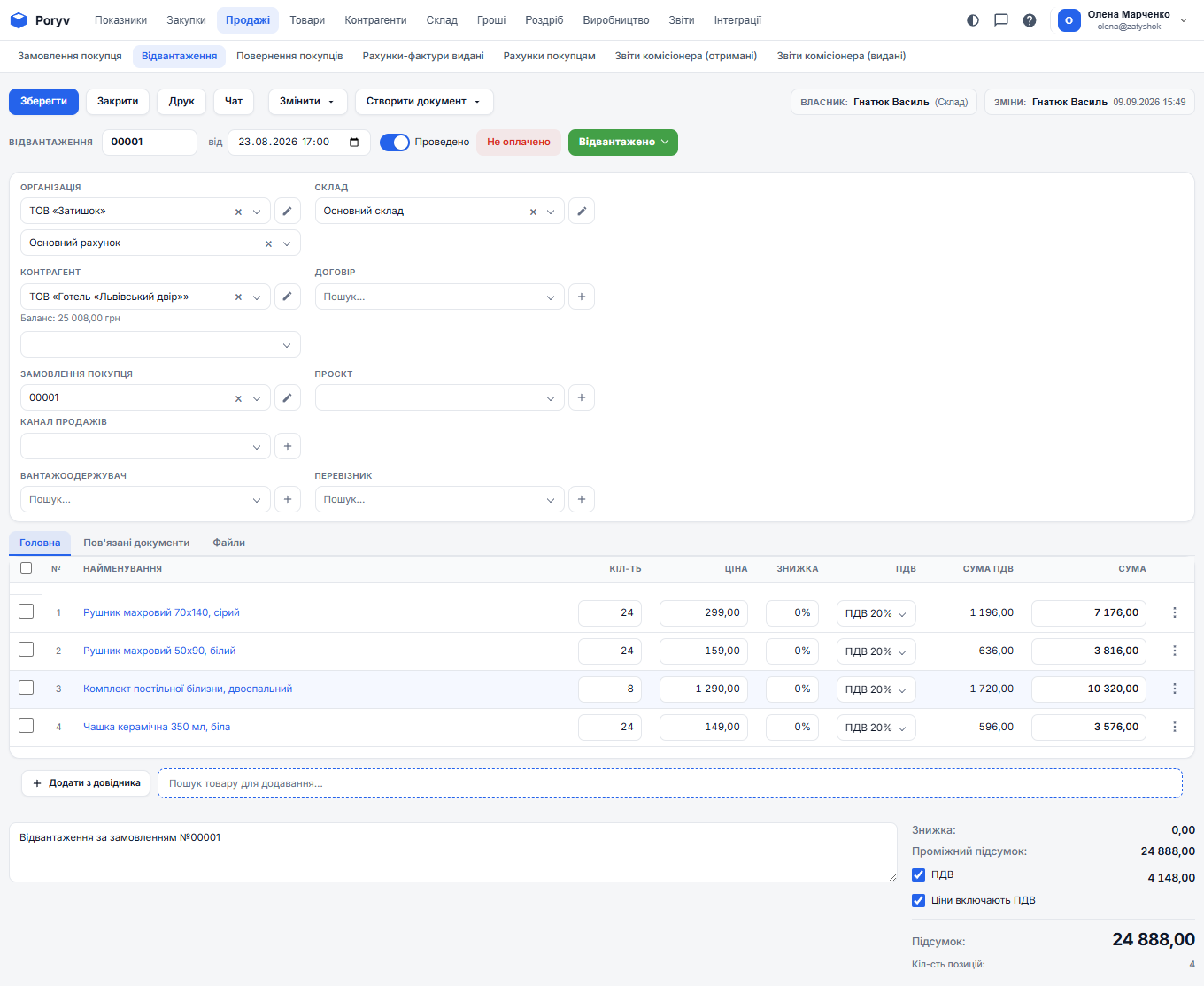
After posting the shipment, the goods leave the stock and the "Profitability" report shows your profit on each line.
Full chain: from order to payment
1. Customer order
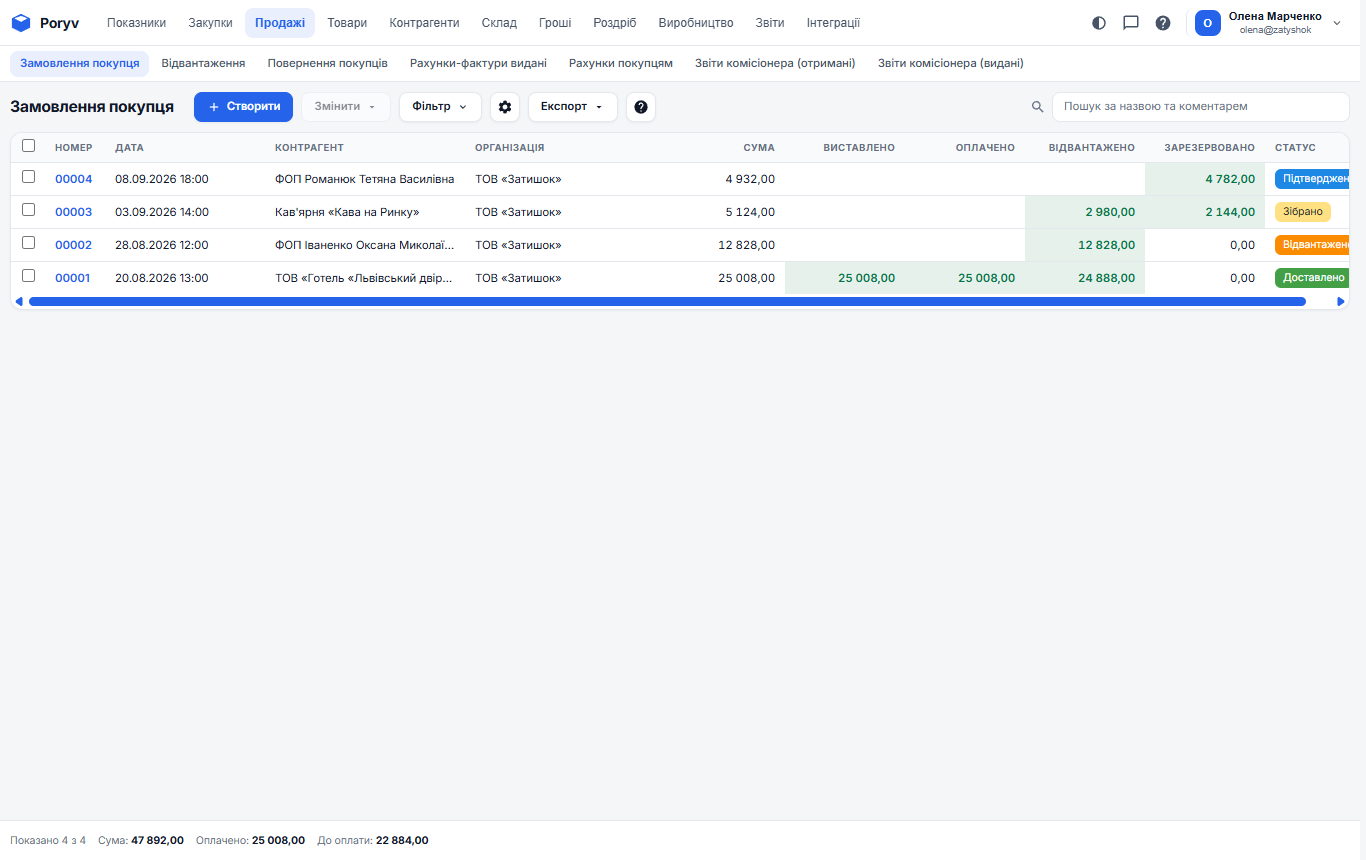
"Sales" → "Customer orders" → "+ Create". Fill in the counterparty, warehouse and lines. Useful fields:
- "Planned shipment date" - when you promised to deliver.
- "Shipment address" - where to deliver.
- The "Reserve" toggle - set goods aside for this order. Reserved goods stay in stock, but the "Stock" report shows them in the "Reserve" column and excludes them from "Available", so they will not be sold to someone else.
- Status - "New", "Confirmed", "Assembled", "Shipped", "Delivered". Change it as you work on the order.
Post the order. It does not affect stock (except the reserve), but it appears in the list with the "Paid" and "Shipped" columns, so you see the state of every order at a glance.
2. Customer invoice
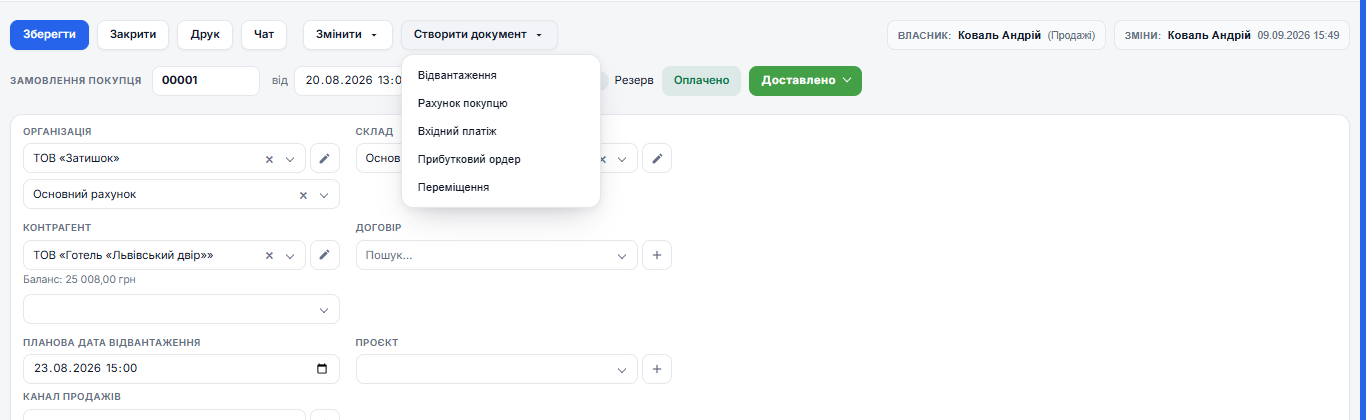
If the client pays by invoice, click "Create document" → "Customer invoice" in the order card. The lines are copied. Post the invoice and print it with "Print". The invoice has a "Planned payment date" field; the "Dashboard" uses it to show overdue invoices.
3. Shipment
When the goods are assembled and handed over, click "Create document" → "Shipment" in the order. The lines are copied; if you hand over only part, reduce the quantity and the rest stays in the order as unshipped. Post the shipment: the goods are written off, the reserve for these lines is released, and the "Shipped" column of the order is filled in.
4. Payment
From the order or shipment card: "Create document" → "Incoming payment" (bank) or "Cash receipt" (cash). The amount is filled in for the whole document; if only part was paid, correct it. Post. The order is marked "Paid" and the customer's debt goes down.
The "Linked documents" tab
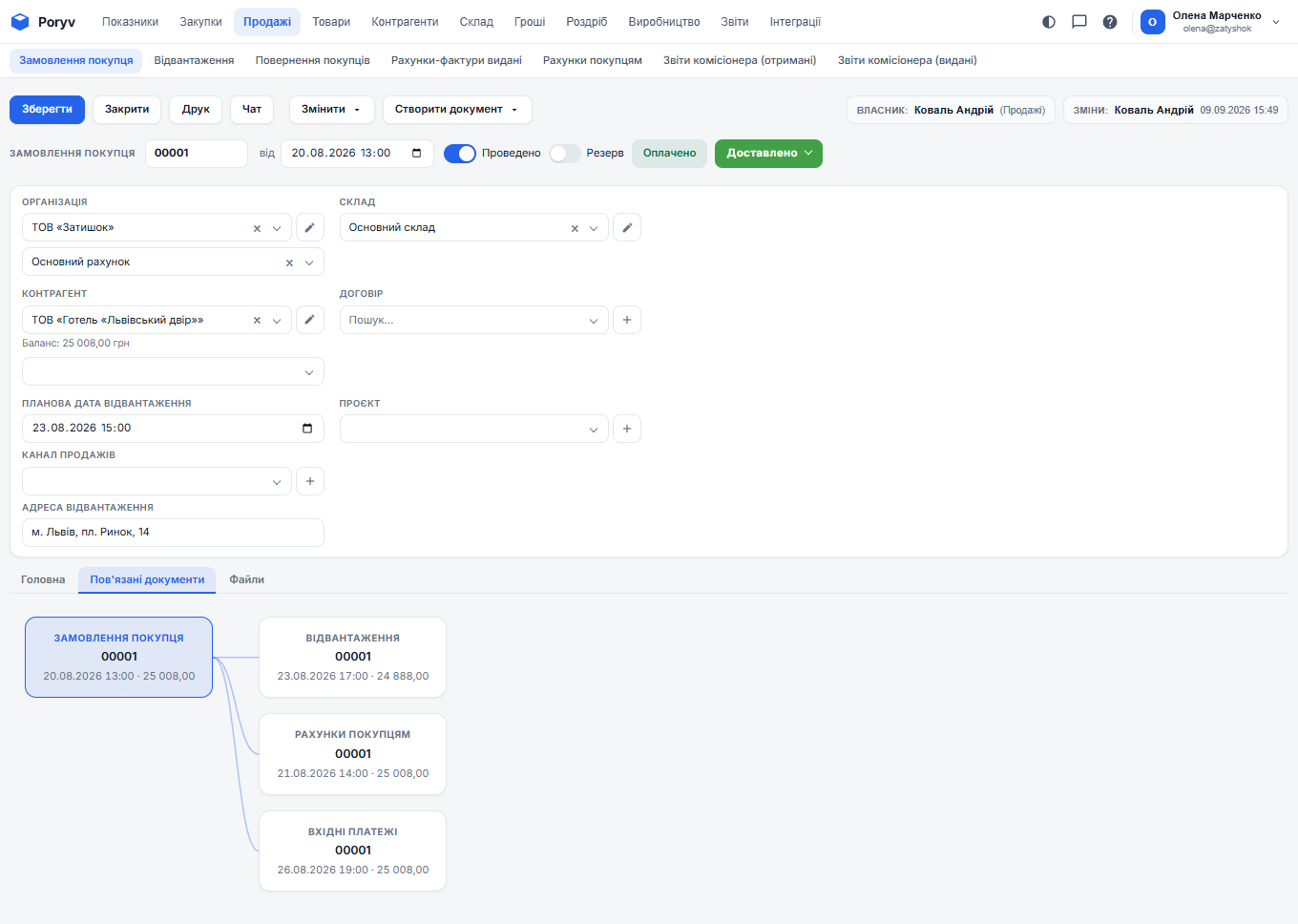
Every document in the chain has a "Linked documents" tab: a diagram showing the order, invoice, shipment and payment with dates and amounts. Clicking any block opens that document. You never lose track of what has already been done for an order.
Return from a customer
If the customer returns goods, open the shipment and click "Create document" → "Sales return". The goods go back to stock and the customer's debt decreases. Money is refunded with an Outgoing payment or Cash expense created from the return.
Do not edit a posted shipment to "remove" a sale: unpost it with the toggle or create a return. This keeps the history honest, and reports for past days do not change unnoticed.
Updated: