How to add products
Creating a product by hand, groups, prices, barcodes, services and loading a catalog from Excel.
Products are the foundation of the records: without them you cannot create a supply or a sale. Add them once; later they are picked into documents from the list.
Create a product by hand
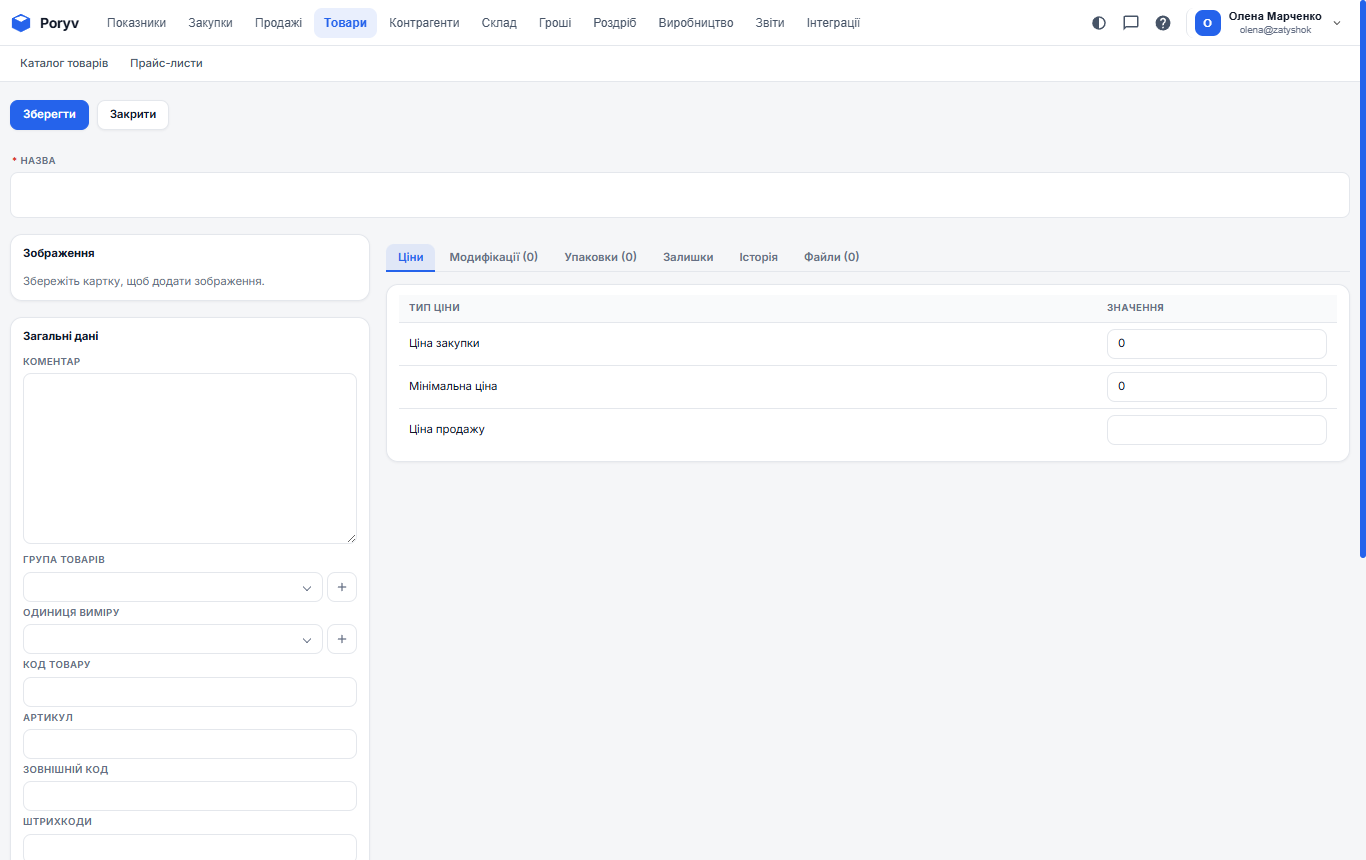
- Open "Products" → "Product catalog".
- Click "+ Product".
- Fill in "Name", the only required field. Write it the way you call the product: "Ceramic mug 350 ml, white".
- In the "General" block set the product group, unit of measure ("pcs" is the default), SKU and barcode.
- On the "Prices" tab enter the "Purchase price" (what you pay the supplier) and the "Sale price" (what you sell for). The sale price is filled into orders and shipments automatically.
- Click "Save".
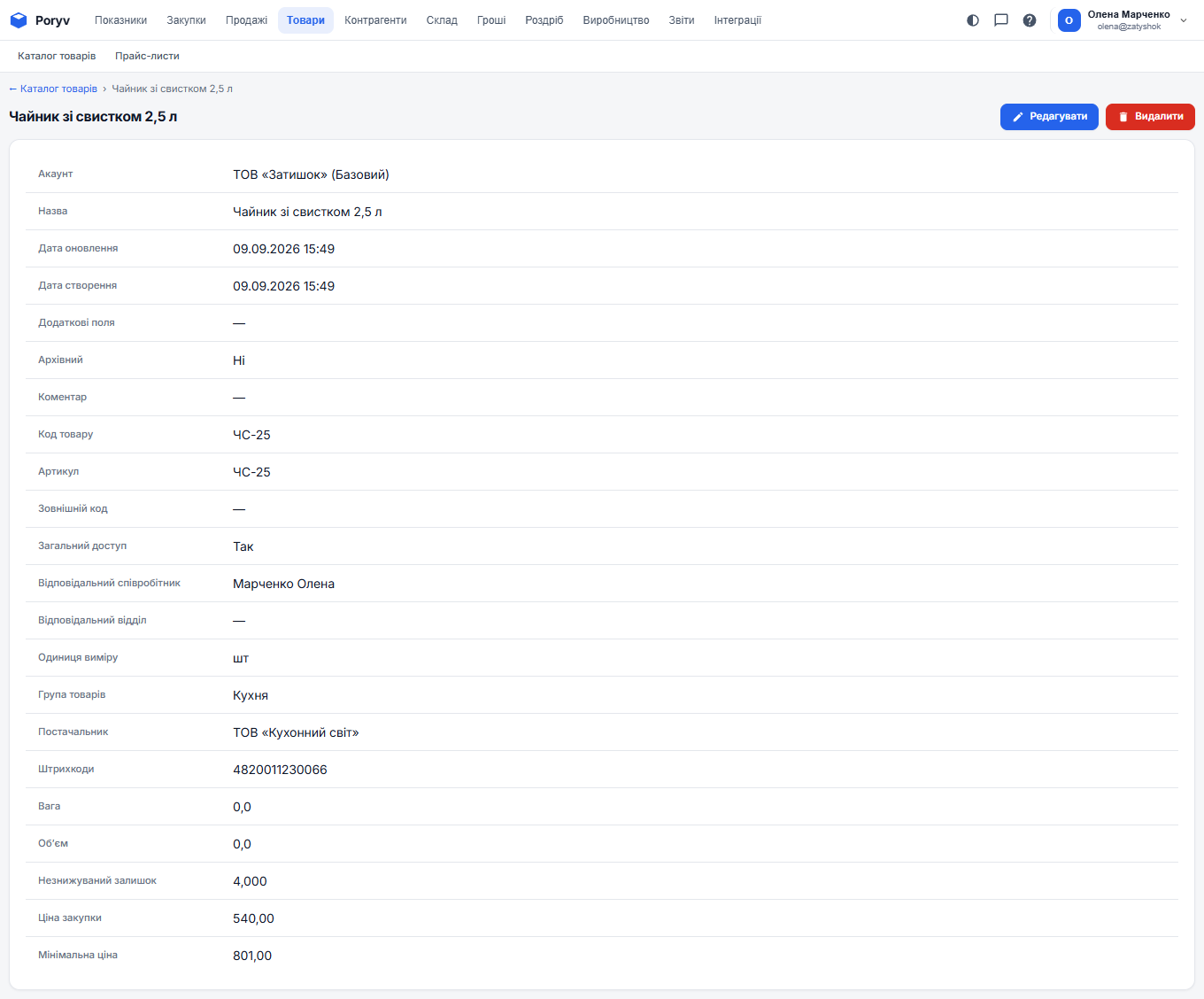
After saving, the product card opens. It gets the "Stock" tab (how much is in each warehouse) and the "History" tab (every document the product was in).
Product groups
Groups are folders in the catalog: "Tableware", "Kitchen", "Textiles". They help to find products quickly and to filter reports. Create a group with the "+ Group" button above the catalog, then pick it in the "Product group" field of the product card. Groups can be nested: "Tableware" → "Mugs".
SKU, code, barcode
- SKU - the product designation as at the supplier or in your price list: "CHK-350-B". Handy for searching in documents.
- Code - an internal number; the program can assign it itself.
- Barcodes - the ones on the packaging (EAN-13, e.g. 4820011230011). Needed when products are added to a document with a scanner.
Minimum stock
The "Minimum stock" field is the smallest quantity that should be in stock. When stock drops below it, the "Stock" report shows the product under the "Below minimum" filter: time to reorder.
Services
Delivery, wrapping, installation are services: the "+ Service" button. A service has no stock and no batch cost, but it is added to orders and shipments in the same way and counts towards the document total.
Bundles and variants
A bundle is a set of several products sold as one line (say, "Gift set: mug + candle"). Variants are versions of one product that differ by color or size and are tracked separately: white mug and blue mug. With a small assortment it is simpler to create each version as a separate product.
Load the catalog from a file
If the products are already in Excel, do not type them by hand:
- Above the catalog click "Import products".
- Drop an XLSX or CSV file. The first row holds column names.
- Check how the program matched file columns to product fields and fix where needed.
- Click "Import". The result, how many were created and updated, is shown on the page.
Every step in detail: Importing dictionaries.
A product that has been used in documents cannot be deleted; it can only be archived (the "Archived" checkbox in the card). An archived product disappears from selection in new documents, but the history is kept.
Updated: