Getting started
Set up in 15 minutes: organization, warehouse, products, counterparties and the first document. For people who have never kept records in software.
Skladnyk is a program where you keep track of your business: what is in stock, who you sold to, who owes you and how much you earned. You do not need to know accounting: you simply record what actually happens ("received goods", "sold", "got paid"), and the program calculates stock and totals for you.
This article is a plan for your first day. Follow the steps in order; it takes about 15 minutes.
Step 1. Check the company settings
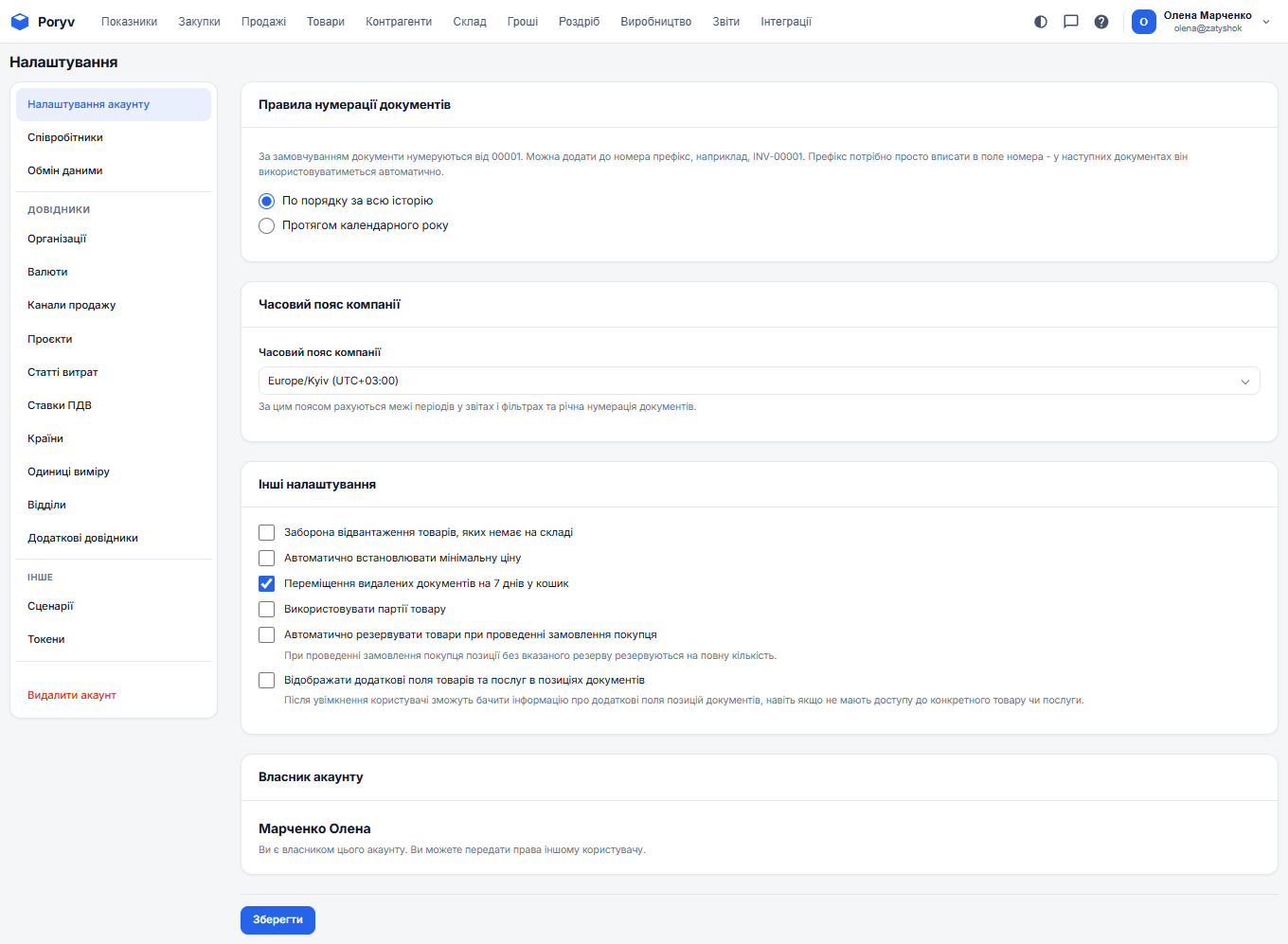
Open the user menu in the top right corner (your name) and choose "Settings". On the "Account settings" tab check the company time zone: dates in documents and reports are calculated in it. For Ukraine it is Europe/Kyiv, which is the default.
Step 2. Fill in your organization details
The organization is you: your LLC or sole proprietorship. It goes into every document as "our side". On registration the program already created an organization named after your account; you only need to fill in the details.
- In "Settings" open the "Organizations" tab.
- Click the organization name to open its card.
- Fill in the name, type (legal entity or sole proprietor), the EDRPOU or tax number, address and phone. These details go on invoices and delivery notes.
- Add a bank account: it is needed for customer invoices.
- Click "Save".
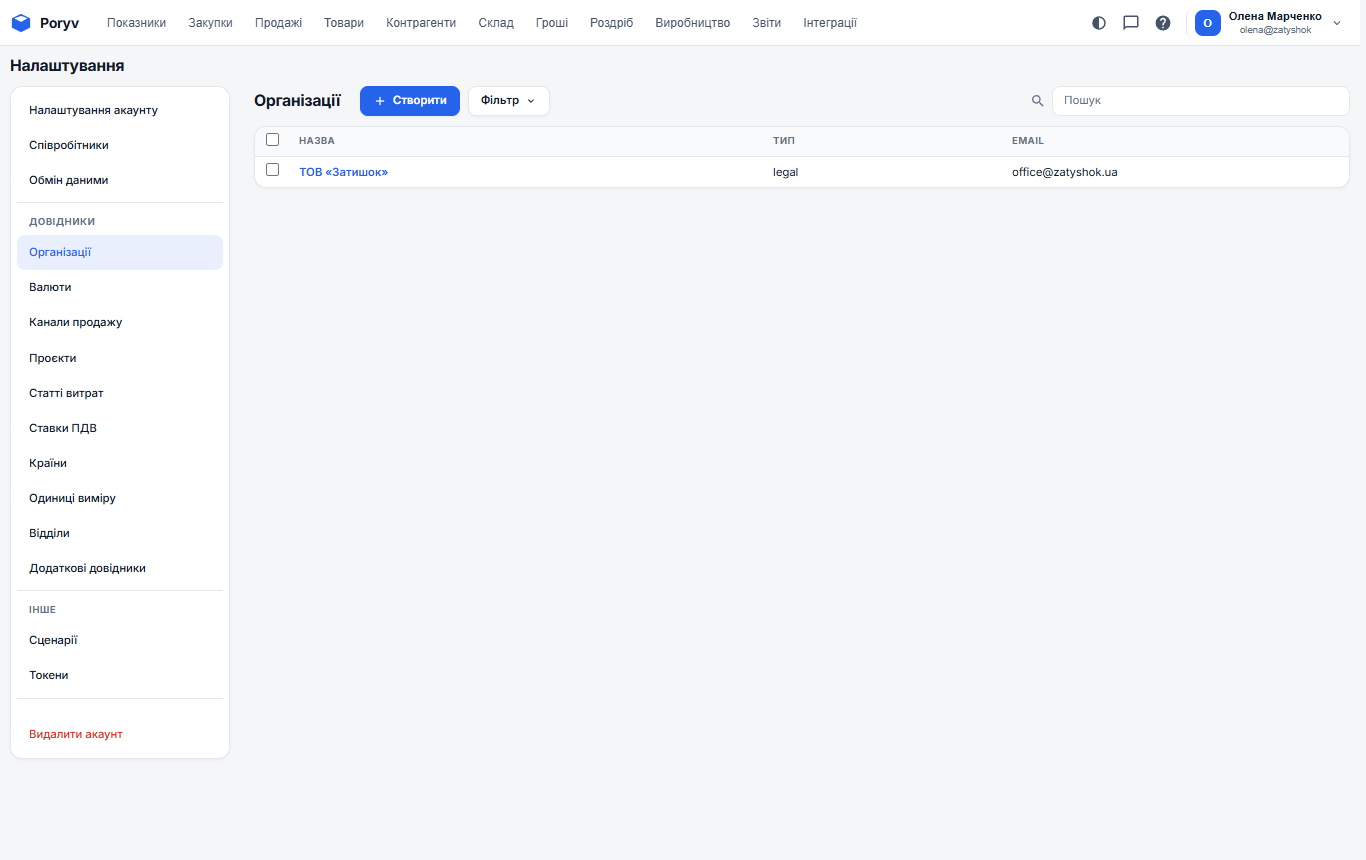
If you have several legal entities (say, an LLC and a sole proprietor), create each as a separate organization. In a document you choose on whose behalf it is issued.
Step 3. Check the warehouse
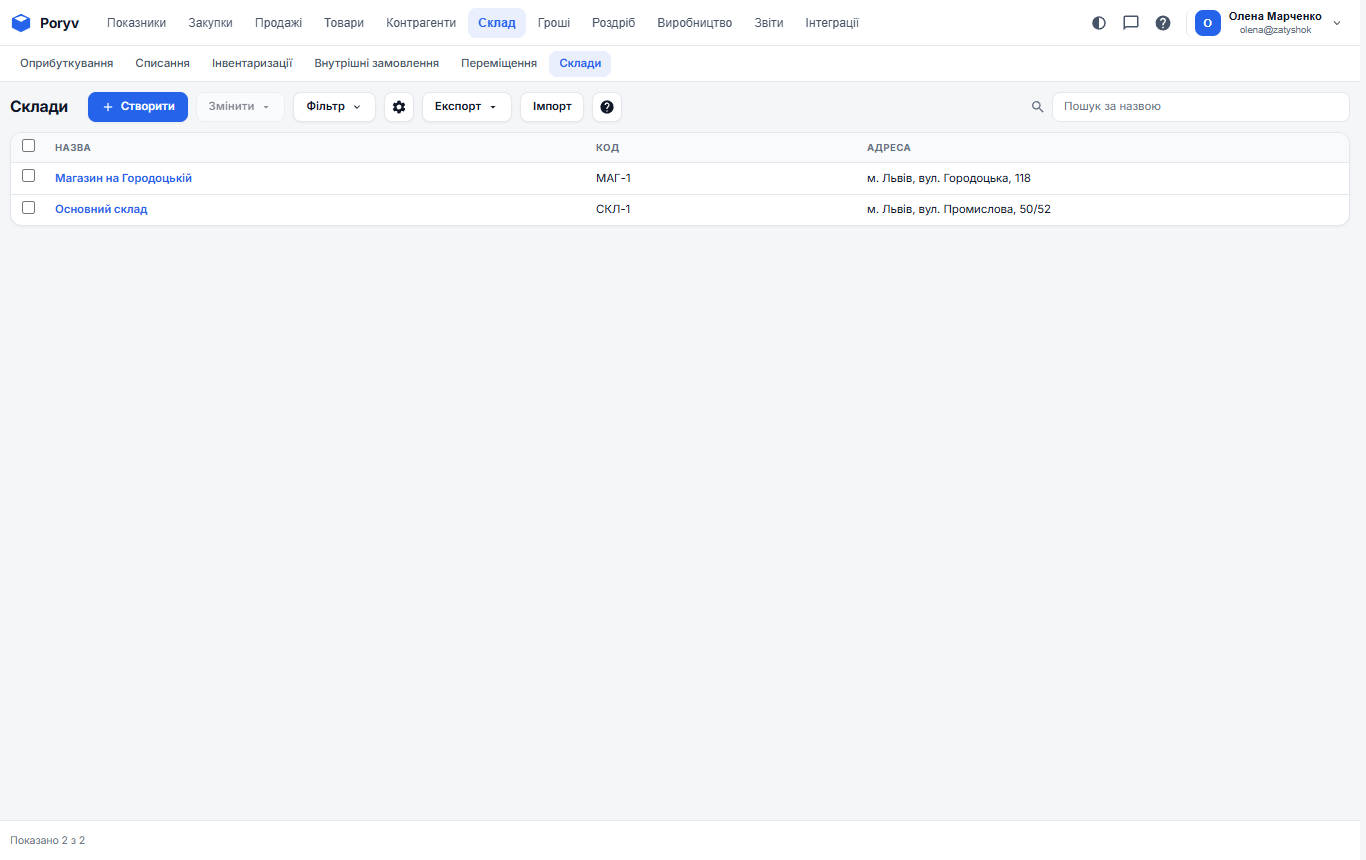
A warehouse is a place where goods are kept. The program already created "Main warehouse". If you also have a shop or a second warehouse, add them: menu "Warehouse" → "Warehouses", button "Create". Stock is tracked per warehouse, so you always see where the goods are.
Step 4. Add products
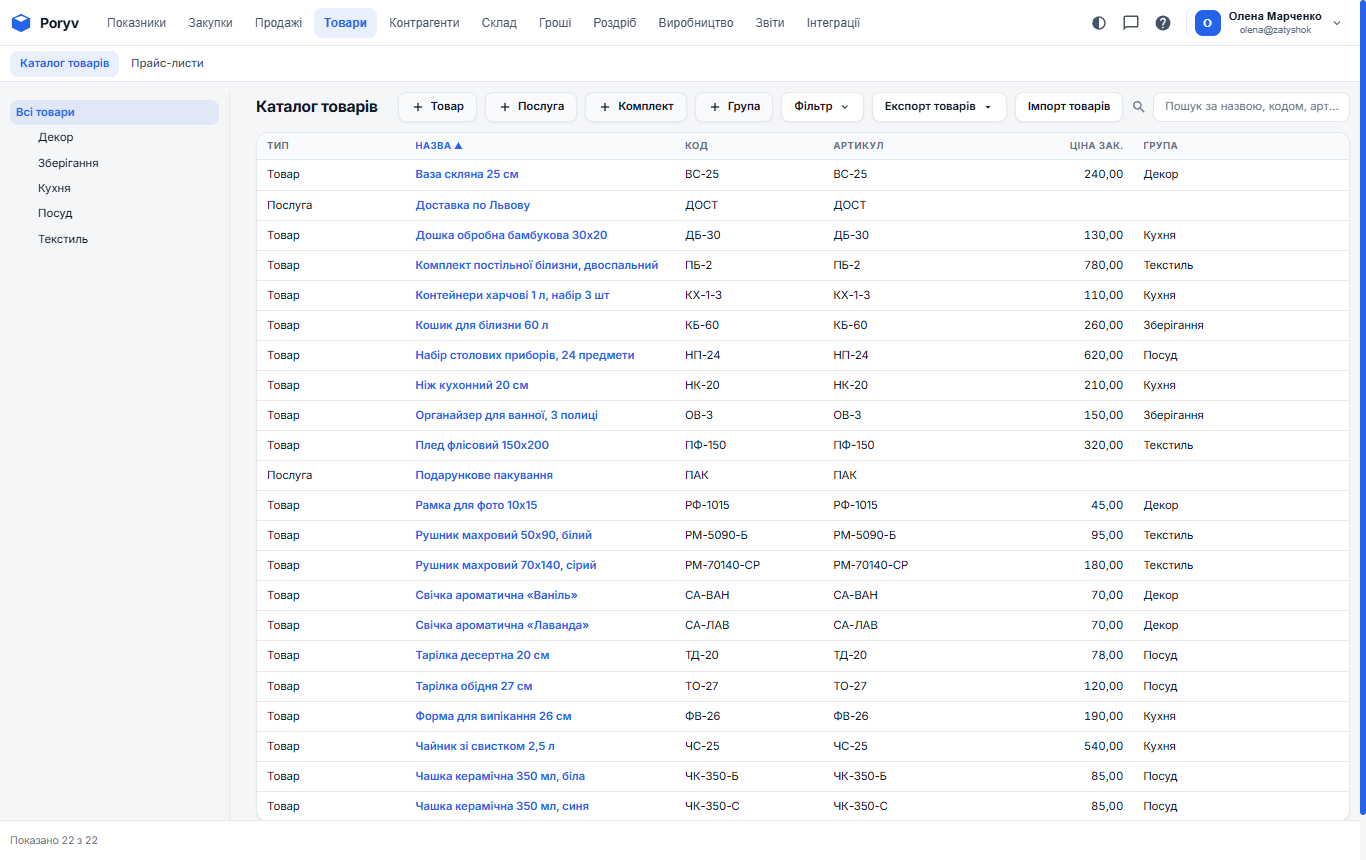
Without products there is no receipt and no sale. Menu "Products" → "Product catalog", button "+ Product". The only required field is the name. We recommend adding the SKU, group and sale price right away. Details: How to add products.
If you have many products and they are already in an Excel file, load them as a list: the "Import products" button above the catalog.
Step 5. Add counterparties
A counterparty is anyone you deal with: a customer, a supplier, a carrier. Menu "Counterparties", button "Create". A name and a phone are enough; details can be added later. A counterparty can also be created right from a document with the "+" button next to the "Counterparty" field.
Step 6. Create the first document
Now you can work. The most common actions:
| What actually happened | Which document to create | Where |
|---|---|---|
| A supplier delivered goods | Supply | Purchases → Supplies |
| A customer ordered but has not collected yet | Customer order | Sales → Customer orders |
| You handed goods to a customer | Shipment | Sales → Shipments |
| Money arrived on the account | Incoming payment | Money → Payments |
| You received cash | Cash receipt | Money → Payments |
| You counted goods in the warehouse | Stock count | Warehouse → Stock counts |
Start with a Supply: this creates stock in the warehouse, and then you can sell. Step by step: How to receive goods from a supplier.
What matters from day one
- A document affects the records only after it is posted. The "Posted" toggle in the document header means "yes, this really happened". Until posted, a document is a draft: stock and debts do not change.
- The base currency is the hryvnia. All report totals are in hryvnias, even if a document is in dollars or euros.
- Cost is calculated automatically by receipt batches: what came in first is written off first (FIFO). You never calculate anything by hand.
- If something is unclear, click "?" above a list or in the program header: the article about that section opens.
Next: Basic concepts in plain words and How the interface works.
Updated: