How to receive goods from a supplier
The "Supply" document step by step: lines, prices, posting, paying the supplier and the purchase order.
When a supplier delivers goods, you create a Supply. Once it is posted, the goods appear in stock and the document amount becomes your debt to the supplier.
Create a supply
- Open "Purchases" → "Supplies" and click "+ Create".
- Check the organization (your side) and choose the warehouse receiving the goods.
- Choose the counterparty, the supplier. If it does not exist yet, click "+" and create it.
- In "Incoming document number" and "Incoming document date" write the number and date of the supplier's delivery note: later the document is easy to find by the paper.
- Add products: in "Search a product to add" start typing the name or SKU and pick the product. Or click "+ Add from catalog" and tick several products at once.
- In each line enter the quantity and the price from the supplier's note. The program remembers this price as the purchase price for cost calculation.
- Check the total at the bottom right and the "VAT" and **"Prices include VAT"** checkboxes: if the supplier's prices already include VAT, leave the second one on.
- Switch on "Posted" and click "Save".
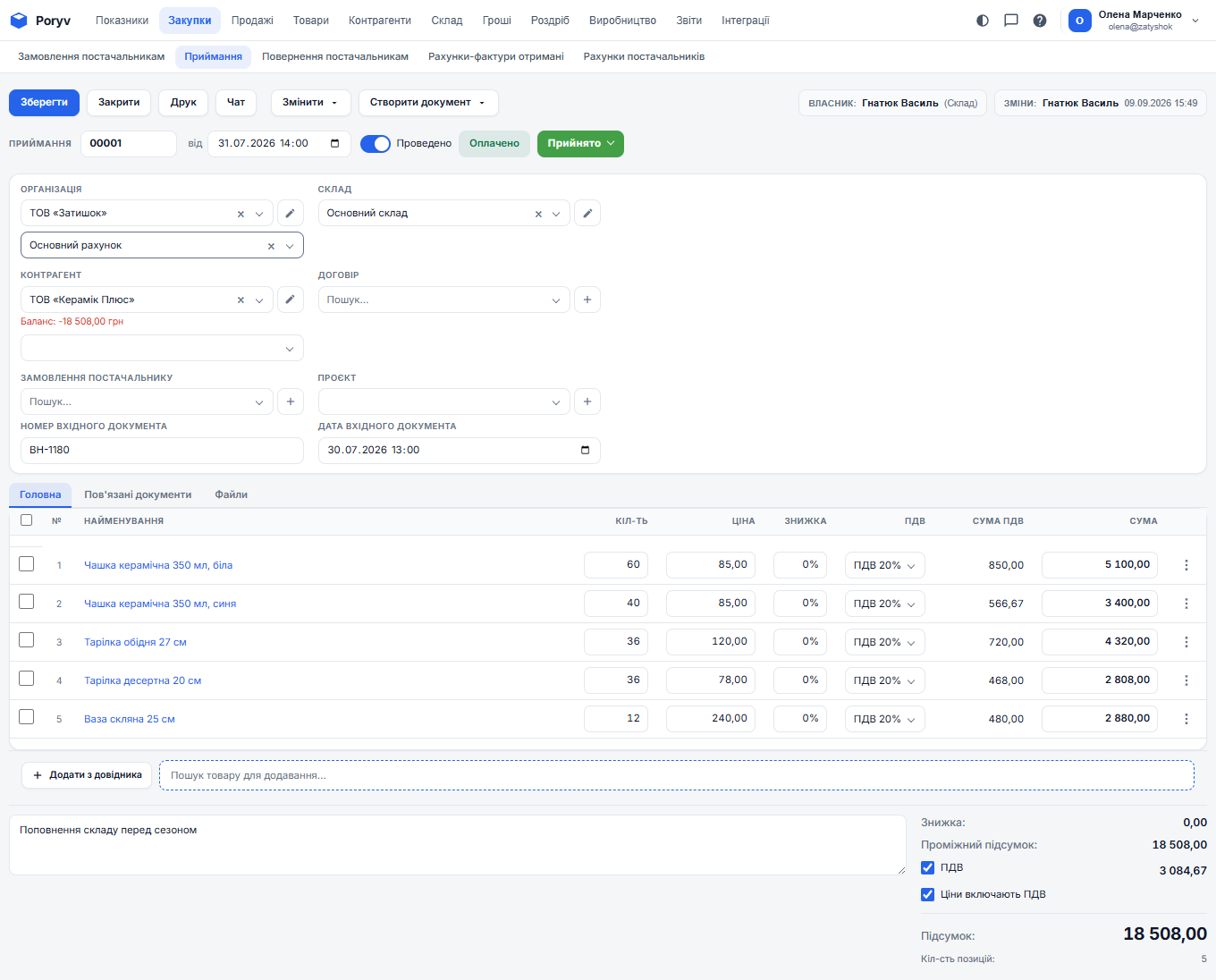
What changes after posting
- In the "Stock" report the quantity of each product grows by the received amount.
- The cost of the received units is the price from this supply. When you sell, the program writes off exactly that.
- The supplier card shows a debt for the supply amount, and the document is marked "Not paid".
Pay the supplier
When you have transferred the money, create an Outgoing payment (from the bank account) or a Cash expense (in cash). The easiest way is from the supply card: "Create document" → "Outgoing payment". The amount and counterparty are filled in, the payment is linked to the supply, and the supply is marked "Paid".
If you paid only part, enter the actual amount: the supply shows how much is still due.
Purchase order
If you order goods first and receive them days later, start with "Purchases" → "Purchase orders". It is a planning document: it does not change stock, but its quantities go to the "Expected" column of the "Stock" report, so you see the goods are on their way.
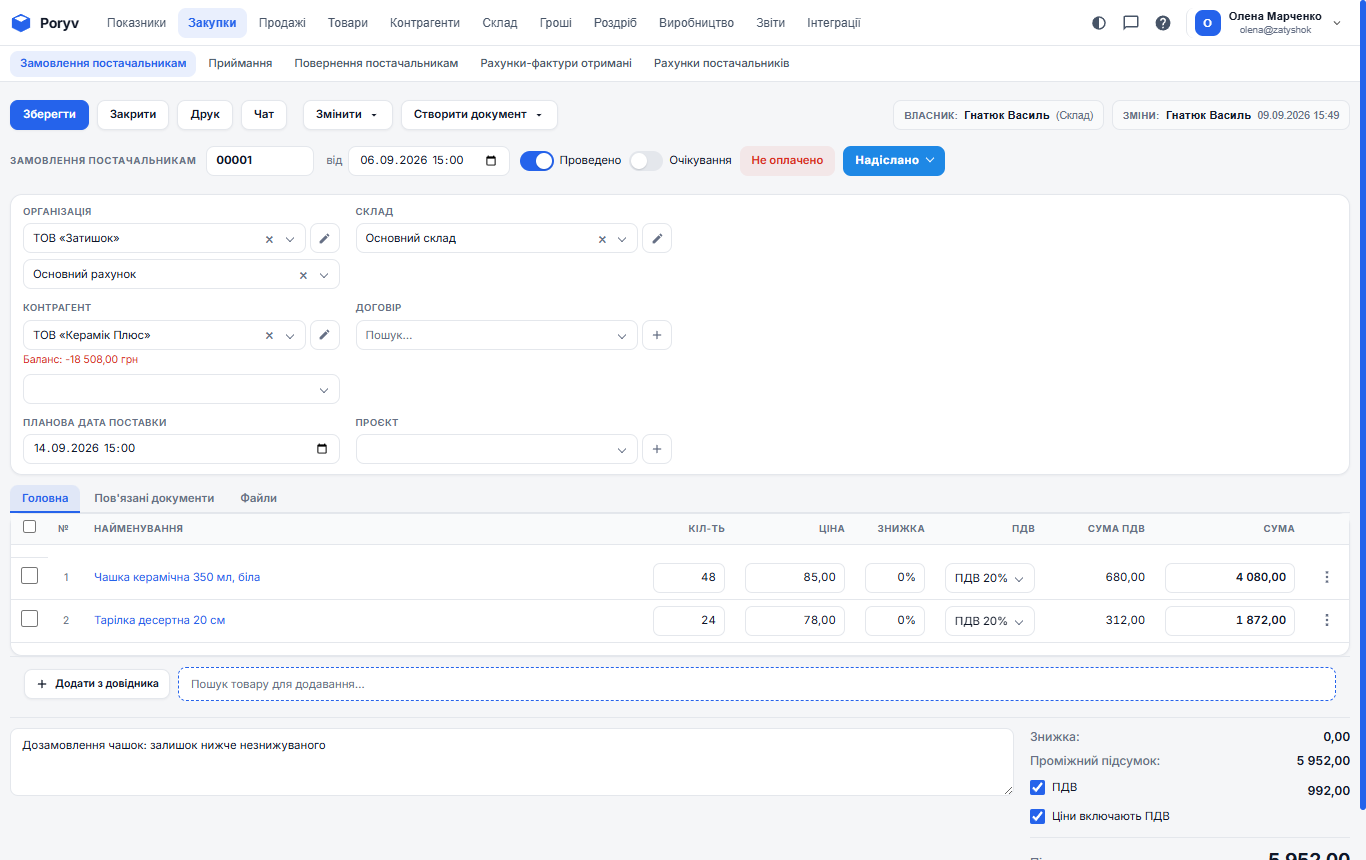
When the goods arrive, open the order and click "Create document" → "Supply": all lines are copied, you only check quantities against the delivery and post. If not everything arrived, reduce the quantity in the supply; the rest stays expected.
Return to supplier
Defective or wrong goods are returned with a "Purchase return". It is created from the supply ("Create document" → "Purchase return"), removes the goods from stock and reduces your debt to the supplier.
A supply dated before already posted sales is a normal situation. The program recalculates the cost of those sales automatically.
Updated: